Your calendar should keep up with you

Kimon Gerhard in a suit with white shirt
By Kimon Gerhard
Updated: Published:

Discover TIMIFY’s new Calendar Interactions, designed to make everyday scheduling faster and more flexible. With Drag & Drop and Keyboard Shortcuts, users can reschedule, reassign, copy and manage bookings directly from the calendar, reducing repetitive admin and adapting the experience to the way they work.
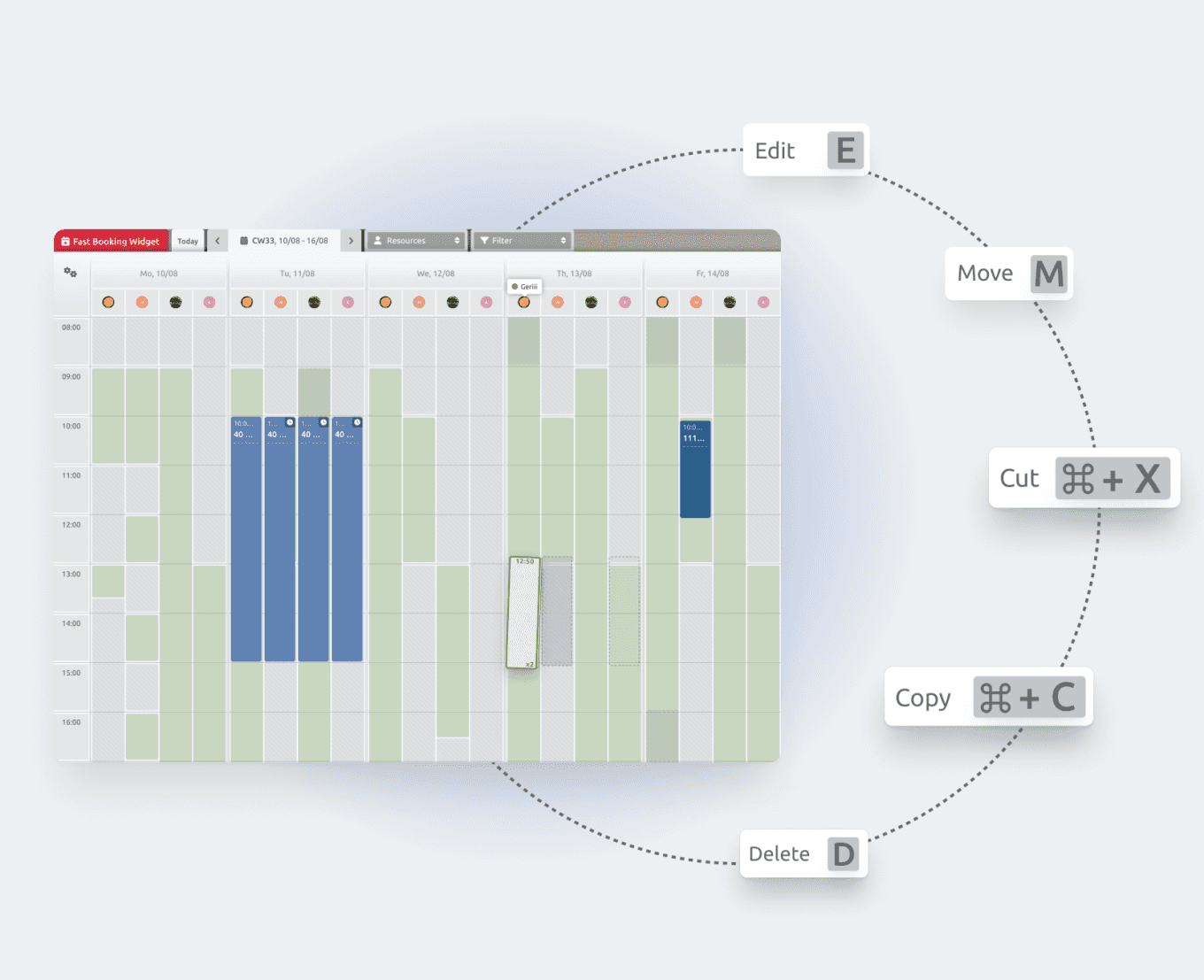

Drag and Drop Image with the short cuts floating around
Back

A busy calendar rarely stays exactly as planned. Appointments move, customers call to reschedule, staff availability changes, and new bookings need to be added throughout the day.

For teams that spend hours working in the calendar, every extra click adds friction. Opening a booking, editing it, saving the changes, and closing the form may seem small at first. Repeated dozens of times a day, it quickly becomes unnecessary admin.

That is the idea behind TIMIFY’s new Calendar Interactions: make everyday scheduling faster, more direct and easier to adapt to the way each user works.

Drag & Drop and Keyboard Shortcuts are at the centre of that experience.

When the day changes, the calendar should change with it

Imagine a busy morning at reception. Several customers need to move their appointments, one employee becomes unavailable, and another booking needs more time than originally planned.

Traditionally, every small change can mean opening a booking form, updating the details and saving it again. With Drag & Drop, many of these everyday adjustments can happen directly where the team is already working: in the calendar.

Traditionally, every small change can mean opening a booking form, updating the details and saving it again. With Drag & Drop, many of these everyday adjustments can happen directly where the team is already working: in the calendar.

Move an appointment to another time. Reassign it to another resource. Extend its duration. Copy it to another slot. Or create a new booking directly from free time.

The result is simple: less time managing the calendar and more time focusing on the day itself.

A lot of changes should not mean opening a lot of forms

The real benefit becomes clear when calendar changes happen repeatedly.

A single reschedule may only save a few clicks. But a front desk, service team or reception desk can make dozens of changes throughout a working day.

Instead of:

Open → Edit → Save → Close

teams can increasingly work directly from the calendar.

Drag. Drop. Done.

This is particularly valuable for businesses where schedules need to remain flexible, such as healthcare, optical retail, service centres or other appointment-heavy environments.

Work faster without giving up control

Speed should not mean losing control over what happens next.

TIMIFY lets users decide when a dragged calendar change should require confirmation. This is particularly relevant when a customer or participant is connected to the booking and a change could trigger communication.

That means teams can choose the balance that fits their workflow: move quickly for routine internal changes, while keeping an additional check where customer-facing changes require more attention.

The calendar also continues to respect existing availability, permissions and resource rules. Drag & Drop changes the way users interact with the calendar, not the rules behind it.

When the mouse is not the fastest option

For users who manage appointments all day, Keyboard Shortcuts can reduce even more repetitive interaction.

Instead of opening menus for common actions, users can work directly from the keyboard. They can edit or preview bookings, create new appointments, copy and paste bookings, jump back to today or switch between calendar views.

The benefit is not about memorising dozens of key combinations. It is about giving frequent users another way to move through their day faster.
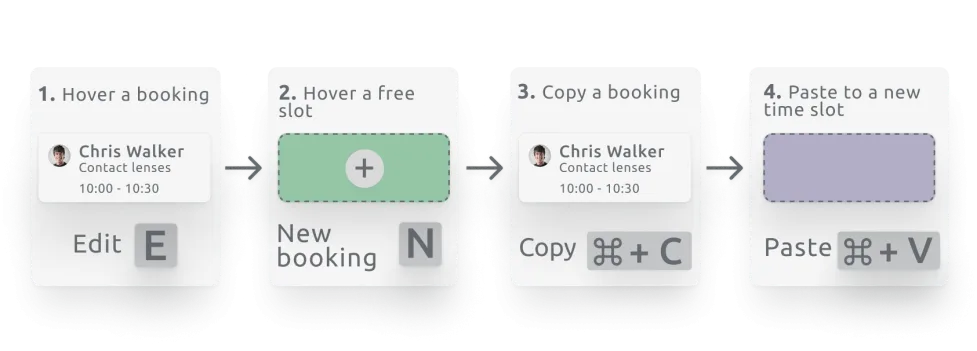

timify shortcuts explained what they do

A calendar that works differently for different users

Not everyone manages the calendar in the same way.

One employee may prefer Drag & Drop for almost every change. Another may work mainly with Keyboard Shortcuts. A third may want more confirmation before changes are saved.

Calendar Interactions can be configured around those different working styles. Users can choose which interactions they want to use and organise their calendar in a way that makes sense for their own daily routine.

That makes the calendar feel less like a fixed interface and more like a workspace that adapts to the person using it.

How to activate the new Calendar Interactions


  • Go to the Calendar Settings by clicking on the ⚙️ icon at the top left of your calendar.
  • From there, you can turn on (they’re off by default) Drag and drop, Keyboard shortcuts, and customise your calendar view and settings in general.

Note: Calendar settings are personal to each user and account. Changing your settings does not change the calendar setup for others using the same account.

Less calendar admin. More time for the work that matters.

Drag & Drop on its own is not the story.

The bigger change is a faster way to work inside TIMIFY: fewer repetitive steps, more direct interactions and more flexibility for users who manage appointments throughout the day.

Because when the schedule changes, the calendar should be able to keep up.

Kimon Gerhard in a suit with white shirt

About the author

Kimon Gerhard

Kimon is currently pursuing a degree in Business & Economics at WU Vienna, he has been part of TIMIFY for over a year as a Working Student. His focus lies primarily on Sales, Partnerships (Business Development), and more recently, Marketing. In his role, he carries out market research, reaches out to potential partners or sales leads, and contributes to marketing initiatives that strengthen TIMIFY’s position as a leading SaaS solution for scheduling and resource management.

Related articles

a graphic representation of a timify calendar with icons around representing statistic data, income, team
Why Your Business Needs a Resource Calendar
Learn more
a graphic representation of a timify calendar with icons around representing statistic data, income, team
Why Your Business Needs a Resource Calendar
Learn more
Appointment Scheduling Beyond the Calendar: Where We’re Heading in the Next 5 Years
Learn more